
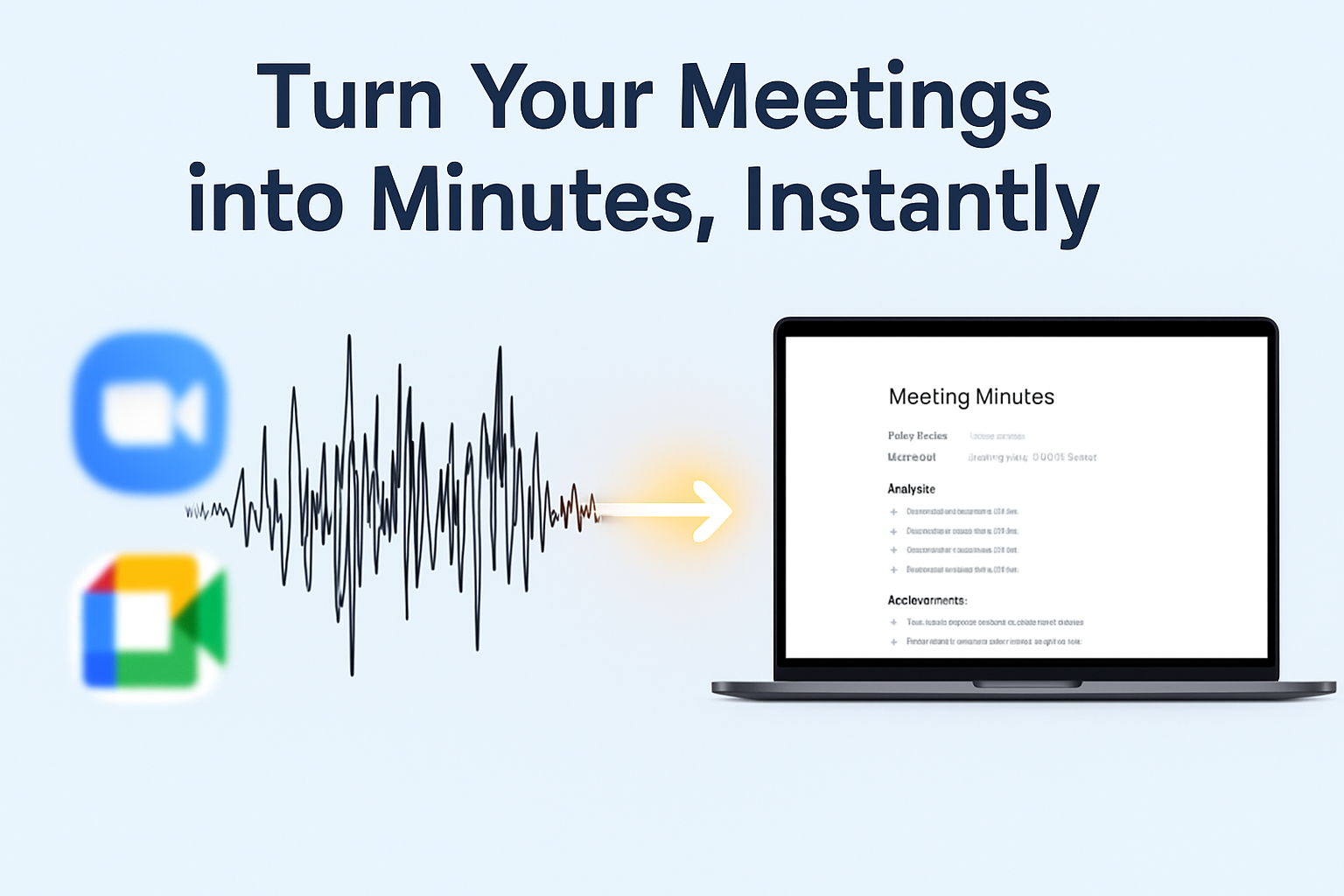
Ever feel like you’re drowning in a sea of Zoom recordings? You finish one meeting, and the recording just sits there, waiting. You know there are golden nuggets of information inside, but who has the time to re-watch a 60-minute call just to find that one important quote?
What if you could turn that hour-long audio into a searchable, scannable text document in just a few minutes? With the power of AI, you absolutely can—and you don’t have to spend a penny.
We’ve tested several methods, and we’re here to walk you through the easiest, fastest, and 100% free way to transcribe your meetings.
Why Should You Transcribe Your Meetings? (The Benefits)
Before we dive into the “how,” let’s talk about the “why.” Transcribing your meetings isn’t just about creating notes; it’s about working smarter.
- Save Incredible Amounts of Time: Stop scrubbing through video timelines. A transcript lets you use
Ctrl + Fto find exactly what you’re looking for—a name, a project, a deadline—in seconds. - Never Miss Important Details: We all zone out sometimes. A transcript is your perfect memory backup, capturing every word, decision, and action item accurately.
- Share Information Easily: Want to update a team member who missed the call? Don’t send them a video they won’t watch. Send them a transcript they can skim in 5 minutes. It’s more accessible and respects everyone’s time.
The Step-by-Step Guide to Transcribing Your Meeting with Speech-to-Text.us
Ready to reclaim your time? Here’s how to convert that Zoom or Google Meet recording into text for free.
Step 1: Get Your Meeting’s Audio File
First, you need the audio from your recorded meeting. The video isn’t necessary and just makes the file bigger.
For Zoom (Cloud Recordings):
- Sign in to your Zoom account on their website.
- In the navigation menu, click on “Recordings”.
- Find the meeting you want to transcribe from the list and click on it.
- You’ll see several file types. Hover over the file named “Audio only” and click the download icon. This will save an M4A file to your computer.
For Google Meet:
Google Meet recordings are saved in your Google Drive, in a folder called “Meet Recordings.” They are saved as video files (MP4), so you need to extract the audio.
- Go to your “Meet Recordings” folder in Google Drive and download the video file.
- Use any free online “MP4 to MP3 converter.” Simply upload your video, and it will give you an audio-only file (MP3) to download.
Step 2: Go to Speech-to-Text.us and Start Transcribing
This is where the magic happens.
- Open your web browser and go to Speech-to-Text.us.
- You’ll see a simple, clean interface. Click the “Upload Your Audio File” button.
- Select the M4A or MP3 file you downloaded in Step 1.
The tool will immediately start processing your file. Our powerful AI works in the background to convert every spoken word into text. It’s fast, secure, and completely free forever. No credit card required, no sign-ups, no hidden fees.
(Image: Screenshot of the Speech-to-Text.us homepage showing the clear upload button.)
Step 3: Review and Edit Your Transcript
Within a few minutes, your full transcript will appear in the online editor. Our AI is highly accurate, but no machine is perfect. It’s always a good idea to give it a quick read-through.
- Smart Formatting: Notice how our tool automatically adds punctuation and capitalization? This saves you a ton of editing time.
- Correct any names or specific technical terms the AI might have missed. The editor is as easy to use as a standard word processor.
Step 4: Export in Your Preferred Format
Once you’re happy with the transcript, just click the “Export” button. You can save your AI meeting notes as a plain text file (.TXT) or a PDF, making it easy to share, save, or copy into other applications like Notion, Word, or Google Docs.
- Easy Export: No complicated menus. Just one click and your file is ready.
Pro-Tips for Getting the Most Accurate Transcription
To get the best results from any transcription tool, the audio quality matters.
- Use a Decent Microphone: If you’re the meeting host, using an external microphone instead of your laptop’s built-in mic makes a huge difference.
- Reduce Background Noise: Try to have your meeting in a quiet place. Close the door, shut the window, and tell your dog his opinion on the quarterly report can wait.
- Speak Clearly: Encourage participants to speak one at a time and enunciate clearly. This helps the AI distinguish between speakers and words more easily.
Frequently Asked Questions (FAQ)
- Is this really free? Yes! 100%. Speech-to-Text.us is free forever for transcribing your meetings. We believe everyone should have access to this technology.
- How accurate is it? With good quality audio, our AI can achieve up to 95% accuracy. It’s highly reliable for meeting notes, interviews, and lectures.
- Can it identify different speakers? Currently, the tool focuses on providing a clean, complete text of the entire conversation. We are working on advanced speaker identification for a future update!
Conclusion: Your Meetings, Upgraded.
You now have the power to turn hours of recorded meetings into valuable, searchable assets in just a few clicks. Stop wasting time manually creating notes and let AI do the heavy lifting for you.
Ready to take back your workday?
Stop Wasting Time on Manual Notes. Try Speech-to-Text.us Today for Free!

Leave a Reply